


How to Make a Watermark Image and Put It on Pictures
How to make your own watermark image (text, logo or signature), what makes one work, and how to put it on pictures, one photo or a whole batch, on iPhone.
A watermark is only useful if it is easy to read, hard to crop out and the same on every picture. Most people skip the first step: making a good watermark image to begin with. They drag a name onto one photo, it looks fine, and then they have to repeat the work for the next fifty.
This guide covers how to make a watermark image from text, a logo or your signature, what makes it work, and how to put it on pictures on an iPhone, one at a time or in a batch. For the applying part we use Markora, our watermark app. If you only need the quick steps for one photo, the iPhone watermark guide is shorter.
The short answer: make the watermark once (a transparent PNG for a logo, or a short line of text), keep it small and slightly see-through, place it where it covers part of the subject, save the layout, then apply the same layout to every picture.
Decide which kind of watermark you need
The right watermark depends on what you are protecting and who sees the picture.
- Text. Your name, shop name or website. Quickest to make and easy to read.
- Logo. A small graphic. Best for a brand that people should recognise.
- Signature. A drawn mark that looks personal, popular with photographers and artists.
- Date and time stamp. Useful when the date matters, for example progress photos or property condition.
- QR code. Lets a viewer scan to reach your page or shop.
Markora supports all five types and lets you stack them on the same picture, so a small logo and a web address can sit together.
How to make a watermark image
- Keep it short. A name or one short line. Long text gets in the way of the picture and is easy to crop.
- For a logo, use a transparent PNG. A logo on a white box looks like a sticker. A PNG with a transparent background blends into the picture. Export it large, because you can always shrink it but cannot sharpen a small file.
- Choose one or two colours. White works on dark pictures and dark grey on bright ones. If your pictures vary, a mid-tone with a soft outline or shadow stays readable on both.
- Test it on a busy picture and a plain one. If you can read it on both, it will work on most of your files.
- Save it. A saved logo file or a saved layout means you never rebuild it.
Where to put it on the picture
A mark in the corner is the easiest to remove. A mark that crosses part of the subject is harder to crop out, but it also distracts. A common compromise is to place it near an edge but inside the main area of the picture, slightly transparent, so it does not fight with the subject.
Markora has a nine-position grid to snap the mark into place and alignment guides so a logo sits in the same spot on every picture. You can also drag, pinch to resize and rotate it.

How to put the watermark on pictures on iPhone
- Open Markora and choose the photo.
- Add a text, logo, signature, QR or date stamp watermark.
- Resize it, set how see-through it is and snap it to a position.
- Export the picture as JPG, PNG or HEIC.
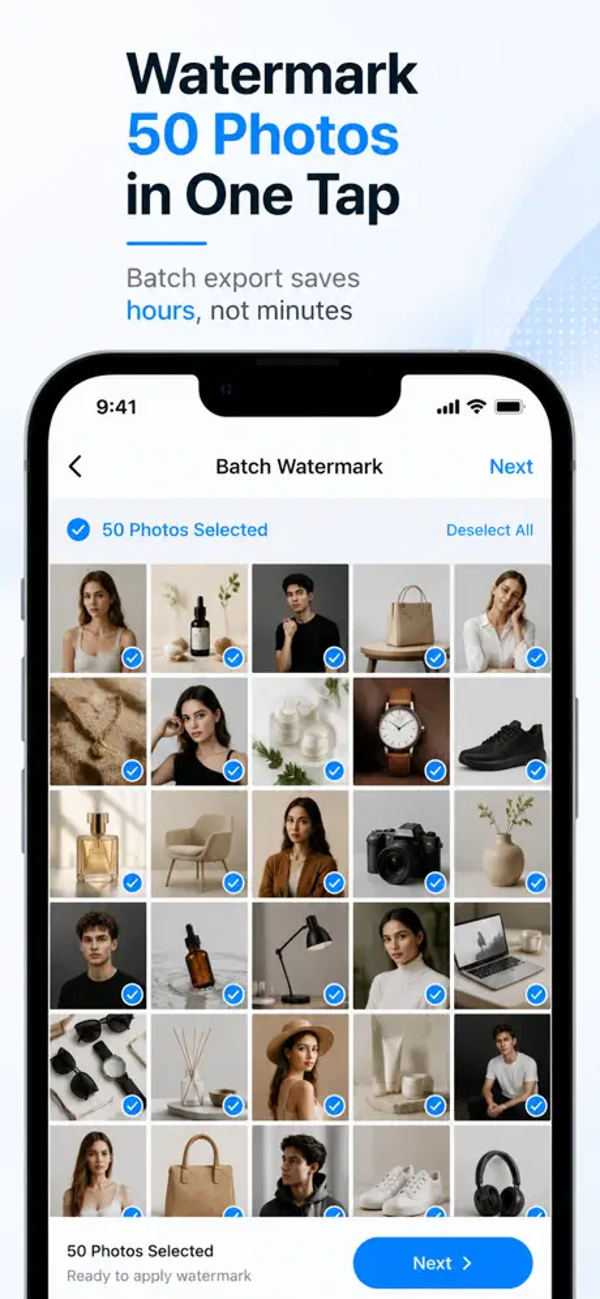
To use the same layout on many pictures, save it as a template, then select a batch and apply it. The free version batches up to 3 files at a time and Markora Pro raises that to 50 photos or 50 videos. Details are in the guide to putting a logo on a picture.
Watermarks and Instagram reach
If you post to Instagram, keep two points from Instagram’s own help pages in mind. Adding a watermark does not make a post count as “original” content, and Instagram’s creator guidance says a third-party watermark on a Reel may reduce its reach (see About original content on Instagram and Instagram for Creators: FAQ). That is mostly about another app’s logo; a small mark of your own brand is a different thing. Copyright also exists without a watermark: a watermark credits you but is not what makes the work yours, and a plain text mark is mainly branding.
A one-page checklist
We turned the steps above into a printable one-page watermark checklist (PDF). It is free to copy and share.
Free options and their limits
- The Photos app. Edit, Markup, then add text or your signature. It is free and built in, but it is one picture at a time and has no saved layout.
- Markora free. Core watermarking with a small batch limit. Importing a logo from the Files app needs Pro, while logos from your photo library are available in the free version.
- Online editors. Many are convenient on a computer, but the picture is usually uploaded to someone else’s server, which matters for client work or unreleased products.
Your pictures stay on your phone
Markora adds the watermark on your iPhone. Photos and videos are not uploaded to BoMoSi to be watermarked. We explain why this matters in Why Markora watermarks stay on your iPhone.
Frequently asked questions
How do I make a watermark image?
Keep it short, use a transparent PNG if it is a logo, choose a colour that is readable on light and dark pictures and test it on a busy picture and a plain one.
What file type should a logo watermark be?
A PNG with a transparent background. A JPG has a solid background and looks like a box on top of the picture.
How do I put a watermark on many pictures at once?
Build the layout once, save it as a template, select your pictures and apply it. In Markora the free version handles 3 files per batch and Pro handles up to 50.
Can I watermark a video the same way?
Yes. Markora can watermark videos as well as photos, in MP4, MOV or QuickTime.
Does a watermark stop people copying my pictures?
No. A watermark makes copying less attractive and credits you, but a determined person can crop or edit it out. Place it where removal would damage the picture.
Is Markora free, and does it work on Android?
Markora is free to download, with free and Pro tiers. It is an iPhone app and is not available on Android.
Markora is an iPhone app. The free version limits batch size, and Markora Pro is available monthly, yearly or as a lifetime purchase. Please make sure you have the right to use any logo or image you add.