


How to Put a Logo on a Picture on iPhone (Corner Position, Opacity, Every Photo)
Add your logo to a photo on iPhone: use a transparent PNG, resize it, set the opacity, snap it to a corner and export. A step-by-step guide using Markora, with what is free.
You have a product photo, a logo, and a phone. The photo needs your logo on it before it goes on Instagram, a marketplace listing or a message to a customer. On a computer you would reach for a design tool. On an iPhone it is faster with an app that is built for this one job.
This guide shows how to put a logo on a picture on iPhone with Markora, our watermark app. The photos in the screenshots use a made-up example brand, “Nova Candle”, so no real company is shown. Everything below was done in the app before this was written.
The short answer: open Markora, choose Watermark Photos, pick your photo, tap Logo, choose your logo from your Photo Library, resize it, snap it to a corner with Position, then Export and save to Photos.
Start with the right logo file
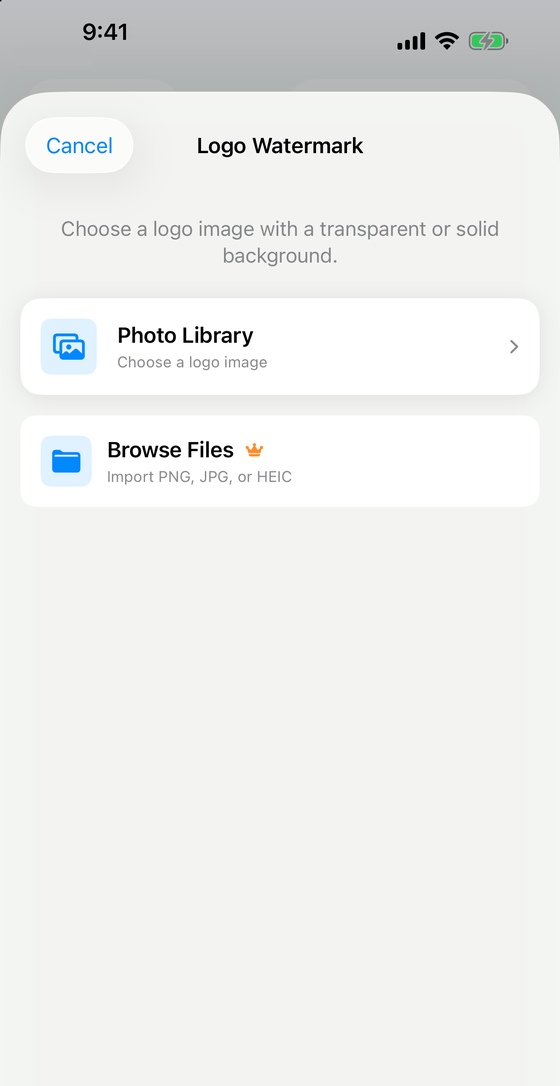
Markora’s logo screen says to choose a logo image “with a transparent or solid background”. A transparent PNG works best, because only the logo itself shows on the photo. A logo saved as a JPG with a white background will bring its white box along.
The easiest way to get a logo into the app is to save it to your Photo Library first. Markora can also import PNG, JPG or HEIC files straight from the Files app, but that option is part of Markora Pro (see “Free or Pro?” below).
How to put a logo on a picture with Markora
- Open Watermark Photos. On the Markora home screen, tap the Watermark Photos card.
- Choose your photo. Pick Photo Library, Camera or Browse Files. The first time, iPhone asks whether Markora may use your Photo Library.
- Look at the editor. A sample text watermark, “Your Watermark”, is placed on the photo for you to start from. If you only want your logo, select the text and tap Delete in the toolbar. The toolbar scrolls sideways, and Delete is next to Duplicate and Lock.
- Tap Logo. Choose Photo Library and select your logo.
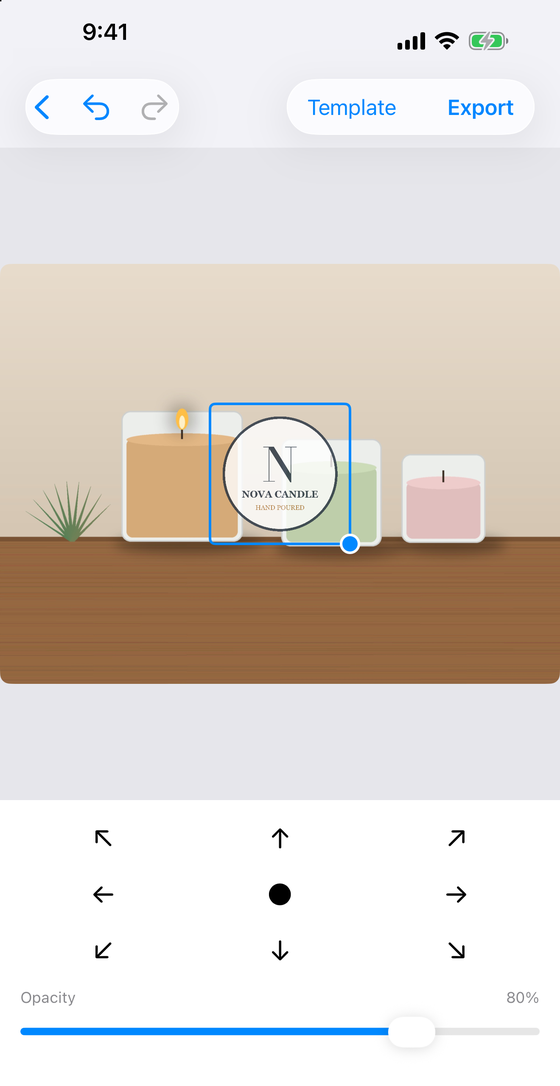
- Place and size it. The logo appears in the middle of the photo. Drag it where you want it and drag the round handle to make it larger or smaller. Keep it big enough to read on a phone, small enough to leave the product clear.
- Set the opacity. The slider under the photo goes from 10% to 100%, and a new watermark starts at 80%. A logo at 70 to 80% is usually visible without taking over the picture.
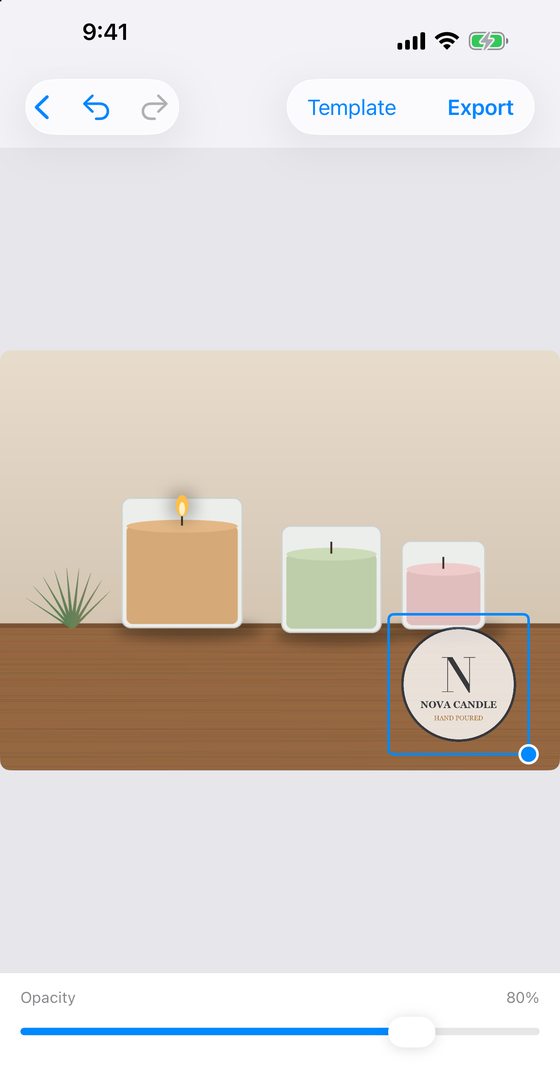
- Snap it to a corner. Tap Position in the toolbar. A grid of nine arrows appears, one for each corner, each edge and the centre. Tap the arrow for the spot you want. If the logo sits too tightly against the edge, nudge it inwards with your finger.
- Export. Tap Export, choose JPG or PNG, pick the quality, decide whether to keep the photo’s metadata, then tap Save to Photos.
Where to put a logo on a picture
- A corner is the safe choice. Bottom-right or bottom-left is where most people look for a brand mark, and it rarely covers the subject.
- Use the same spot every time. A logo in the same place on every photo makes a shop or a feed look consistent.
- Keep it off the key details. Don’t cover faces, labels or prices.
- Make it readable, not loud. If you can only see the logo and not the product, reduce the size or the opacity.
Put the same logo on many photos
Doing this one photo at a time gets slow when you have a whole product line. Markora has two ways to save time:
- Templates. Tap Template to save the finished layout, including the logo, its size and its position, under a name. You can apply it to new photos later from the home screen.
- Batch. The Batch Watermark card applies one layout to several photos at once. Free users can batch up to 3 files, and Pro raises the limit to 50.
Our guide to watermarking photos and videos on iPhone covers batches, text, signatures, date stamps and video in more detail.
Free or Pro?
Markora is free to download. Adding a logo is not a Pro feature, and neither is choosing JPG or PNG. What the free version limits:
- Exports. The export screen shows how many free exports you have left. When we tested, it showed 5, then 4 after the first save. After that you can unlock one more export by watching a short ad, or upgrade to Pro for unlimited exports.
- Importing a logo from Files. That is a Pro option. Without Pro, import your logo through the Photo Library.
- Batches. Up to 3 files without Pro.
- Ads. The free version shows ads.
The upgrade screen in the app shows current Pro prices and the full list of Pro features. Subscriptions renew automatically unless you cancel them in your Apple Account settings.
Your photos stay on your iPhone
Markora adds the logo on your device. Your photos are not uploaded to BoMoSi servers for watermarking. The app asks for Photo Library access only to import and save photos. Our article on why Markora stays on-device explains the reasoning.
FAQ
How do I put a logo on a picture on iPhone?
Open Markora, choose Watermark Photos, pick your photo, tap Logo, select your logo from your Photo Library, resize it, snap it to a corner with Position, then export and save.
What kind of logo file should I use?
A transparent PNG. Markora accepts a logo with a transparent or solid background, but a solid background will show as a box on the photo.
Can I make the logo see-through?
Yes. The opacity slider runs from 10% to 100%, starting at 80%.
How do I put the logo in the same place on every photo?
Use the Position grid to snap the logo to the same spot each time, or save the layout as a template and apply it to other photos. Batch Watermark applies one layout to several photos at once.
Is adding a logo free in Markora?
Yes, the Logo tool is free. The free version limits the number of exports and batch size, and importing a logo from Files needs Pro.
Does Markora upload my photos?
No. The logo is added on your device.
Can I put a logo on a video too?
Yes. Markora can watermark videos as well. The steps are similar, and our watermark guide covers video.
Markora is an iPhone and iPad app with optional Markora Pro subscriptions or a one-time purchase. Subscriptions renew automatically unless cancelled at least 24 hours before the period ends. Screens shown use a made-up example brand and a sample photo.