


How to Combine PDF Files Into One on iPhone (and Set the Page Order)
Merge several PDFs into one file on iPhone, choose the page order, and send a single attachment. A step-by-step guide using FileTurn, with what is free and what needs Pro.
An application form that accepts one attachment. A bank that wants your ID, proof of address and a signed form as a single file. A client who would rather open one document than five. In each case you have several PDFs, and what you need is one PDF with the pages in the right order.
This guide shows how to combine PDF files on iPhone with FileTurn, our PDF and file converter app. It also covers the things that usually go wrong: the wrong order, files that are not PDFs yet, and size limits. We tested every step in the app before writing this.
The short answer: open FileTurn, choose Merge PDF, pick your PDFs, drag them into the order you want, tap Merge and open or share the result. Merge PDF is a Pro tool in FileTurn. Free users can unlock it for the day by watching a short ad.
Before you start
- Each file should be about 3 MB or smaller. FileTurn shows this limit on its home screen.
- You need an internet connection. Files are uploaded to FileTurn’s conversion service to be merged, and the app says so on the merge screen.
- Everything has to be a PDF. If you have a Word document or photos, convert them to PDF first (see below).
- Merge PDF needs Pro or a daily unlock. More on that further down.
How to combine PDFs on iPhone with FileTurn
- Open Merge PDF. On the FileTurn home screen, tap the Merge PDF tile. You can also find it in the full tool list, and pin it to Home so it is one tap away.
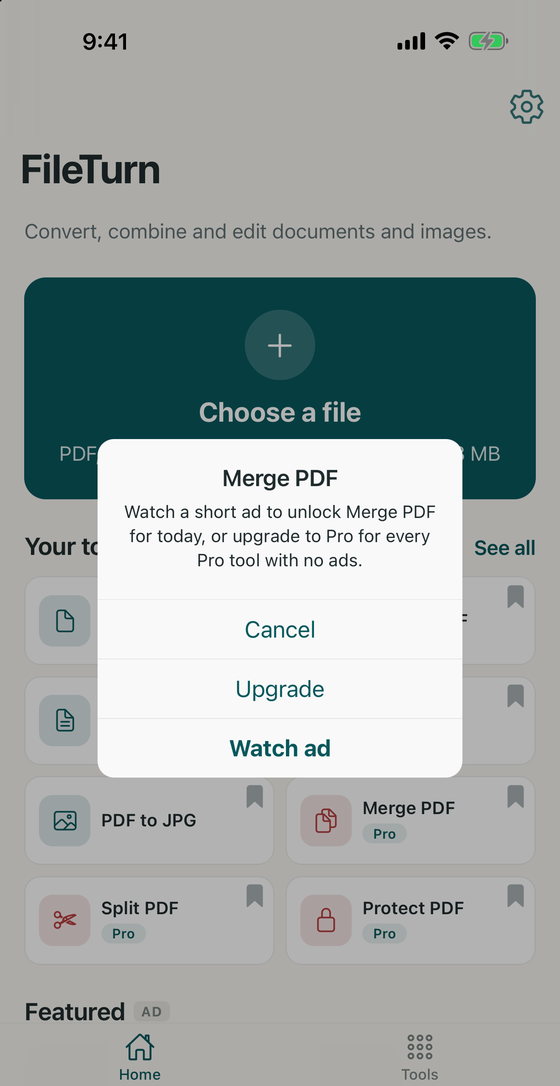
- Unlock it if asked. If you are not on Pro, the app asks whether to watch a short ad to unlock Merge PDF for today, or to upgrade. Choose whichever suits you.
- Pick your PDFs. The file picker opens. Tap each PDF you want, then tap Open. You can select several at once, from the Files app or other locations the picker can reach.
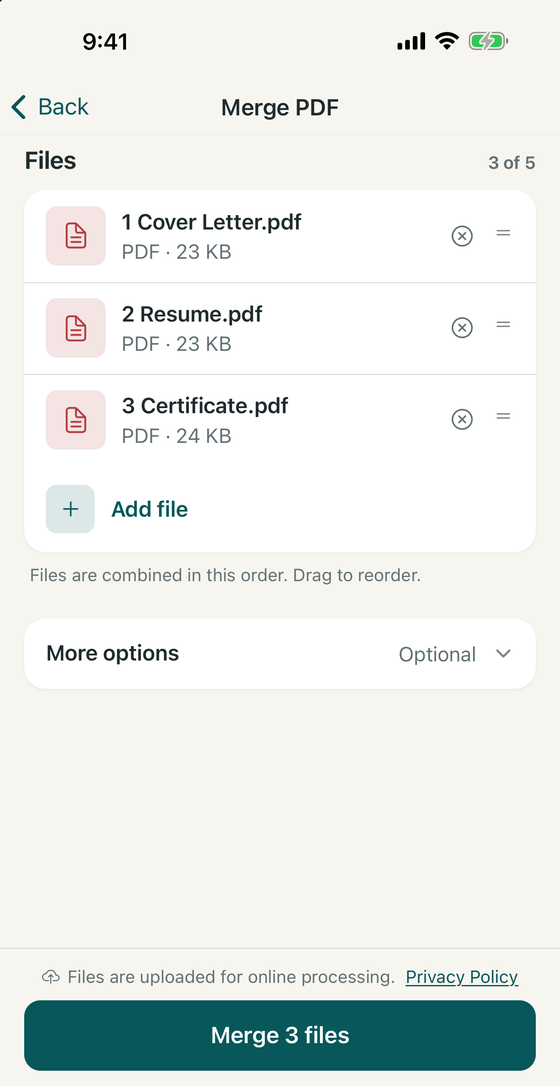
- Check the order. The merge screen lists your files and says “Files are combined in this order. Drag to reorder.” When we picked three files, they were not listed in the order we had tapped them, so always check the list before you merge.
- Drag to reorder. Press the handle on the right of a file and drag it up or down until the list matches the order you want in the finished document. Tap the circled x to remove a file you added by mistake, or Add file to include another.
- Tap Merge. The button shows how many files it will combine, for example Merge 3 files. FileTurn uploads them, merges them and shows “Your file is ready”.
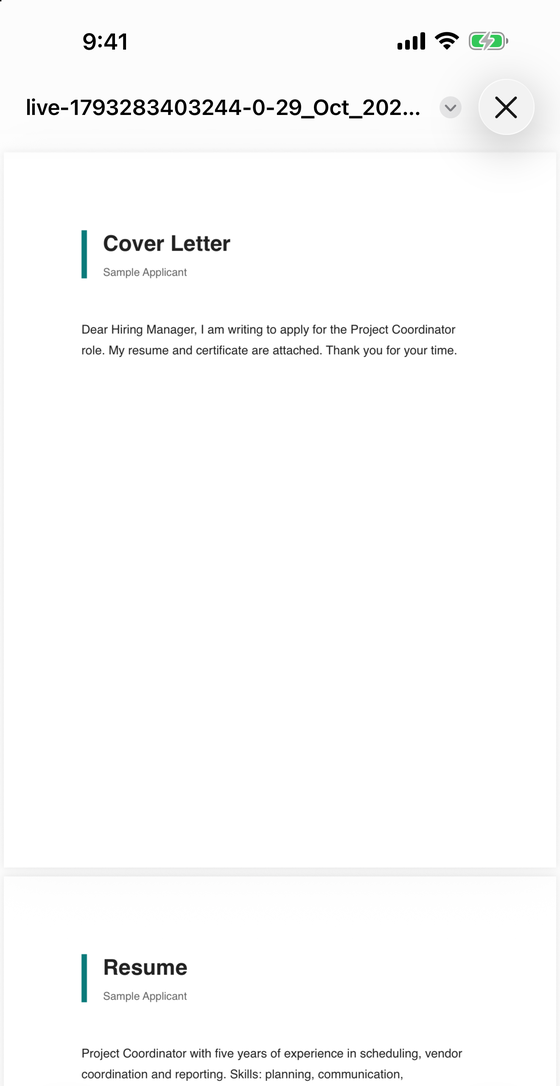
- Open or share it. Tap Open to check the result page by page, or use the share button to send it, save it to Files or attach it to a message.
The merged file is given an automatic name based on the date and time, so rename it when you save it if you want something clearer, such as the name of the application.
Getting the order right
The order on the merge screen is the order of the pages in the finished PDF. A typical job application would go cover letter, then resume, then certificates, so that is the order to set. Open the merged file before you send it and scroll through it. Fixing the order takes seconds, whereas a wrong order is hard to spot once the file is sent.
What if your files are not PDFs?
Merge PDF combines PDF files. For anything else, convert it first and then merge:
- Photos or scans: convert each JPG or PNG to PDF in FileTurn, then merge them. This is how you turn several photographed pages into one document. Our guide to FileTurn and photo to PDF conversion walks through it.
- Word documents: use the Word to PDF tool, then merge the result with your other PDFs.
- A PDF with pages you don’t need: FileTurn also has a Split PDF tool, which is a Pro tool as well, for separating a PDF into individual pages.
Free or Pro?
FileTurn is free to download, and the free version is supported by ads. Merge PDF is one of the tools marked Pro in the app. When you tap it without Pro, the app shows this choice: watch a short ad to unlock Merge PDF for today, or upgrade to Pro for every Pro tool with no ads. The upgrade screen in the app shows current prices and the full list of Pro features, so check there rather than relying on a price written in an article.
Limits and privacy
- The merge screen shows a file counter, for example “3 of 5”, so there is a limit on how many files go into one merge.
- Each file should be about 3 MB or smaller, so very large scans or full-resolution photo PDFs may not fit.
- Your files are uploaded for online processing when you merge. Don’t merge documents you are not comfortable uploading. The FileTurn privacy policy explains how files are handled, and our article on what “privacy-first” means across BoMoSi apps explains how FileTurn differs from our on-device apps.
FAQ
How do I combine PDF files on iPhone?
Open FileTurn, choose Merge PDF, select the PDFs you want, drag them into the right order, tap Merge, then open or share the combined file.
Can I choose the order of the pages?
Yes. The merge screen says the files are combined in the order shown and lets you drag them to reorder. Check the list before you tap Merge.
Is merging PDFs free in FileTurn?
Merge PDF is a Pro tool. Free users can watch a short ad to unlock it for the day, or upgrade to Pro. FileTurn itself is free to download.
Can I combine photos into one PDF on iPhone?
Yes, in two steps: convert each photo to PDF with FileTurn, then merge the PDFs.
Does merging PDFs work offline?
No. FileTurn uploads your files to its conversion service, so it needs an internet connection.
How many PDFs can I combine at once?
The merge screen shows how many files you have added out of the allowed number, for example “3 of 5”. Each file should also be about 3 MB or smaller.
Where does the merged PDF go?
After merging, FileTurn shows the finished file. You can open it, share it, or save it to the Files app from the share menu.
FileTurn is a free iPhone and iPad app with optional FileTurn Pro subscriptions. Pro subscriptions renew automatically unless cancelled at least 24 hours before the period ends; you can manage them in your Apple Account settings. Conversion needs an internet connection, and available outputs depend on the source file.